Basic flow
This section demonstrates a basic example that:- Takes two integers as an input to a flow.
- The first task adds the integers together and passes the result as an input to the second task.
- The second task takes the square root of the input and returns the result as the final output of the flow.

- Create a workspace using the Domino Standard Environment (DSE) from 6.0 onwards, or a custom environment that is built on top of the DSE >= 6.0, as these contain the required Flyte Python libraries.
-
Create a file named
add.pyin the root directory. Add the following code to the file to add two integer inputs together: -
Create a file named
sqrt.pyin the root directory. Add the following code to the file to calculate the square root of the input: -
Create a file named
workflow.pyin the root directory (see the Flytekit Python library documentation on GitHub). Add the following code to the file to define the flow: -
Commit the code and run the following command in the Workspace terminal to register and run the flow:
-
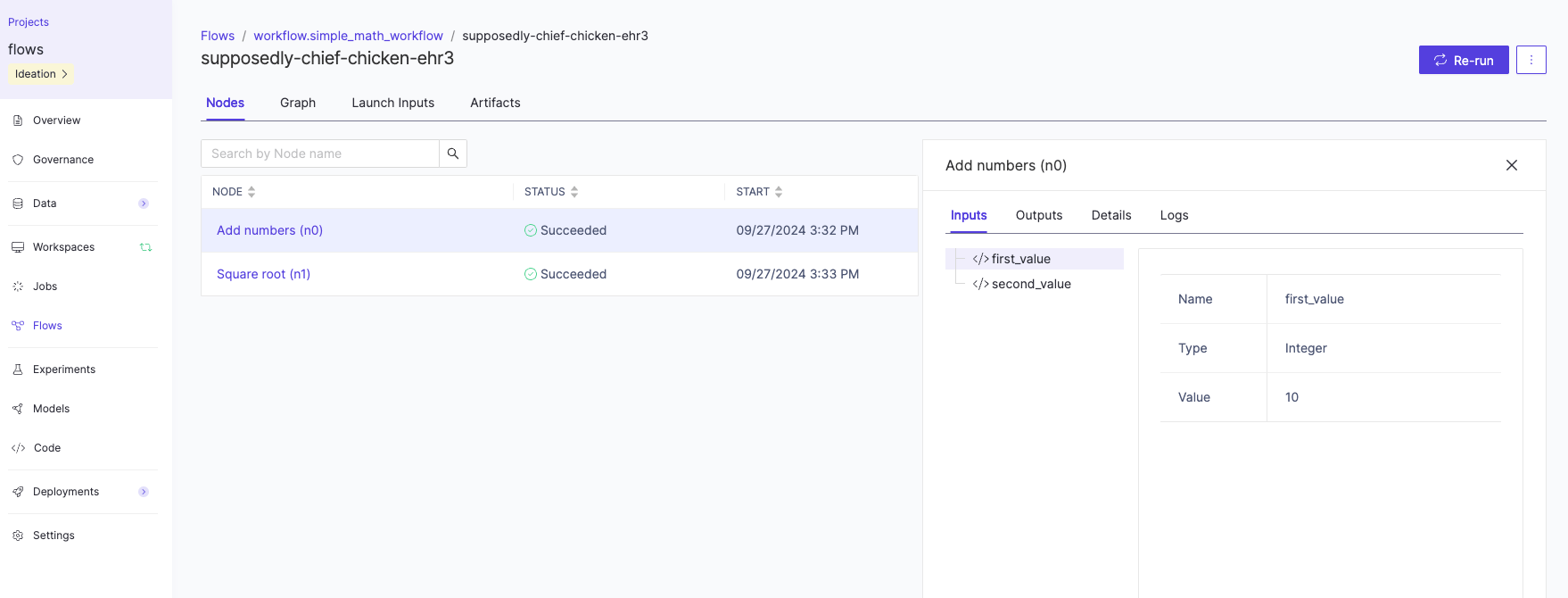
Once you run the command above, navigate to Flows > Flow name > Run Name in the Domino UI to monitor the results and view the outputs that were produced by the execution.
-
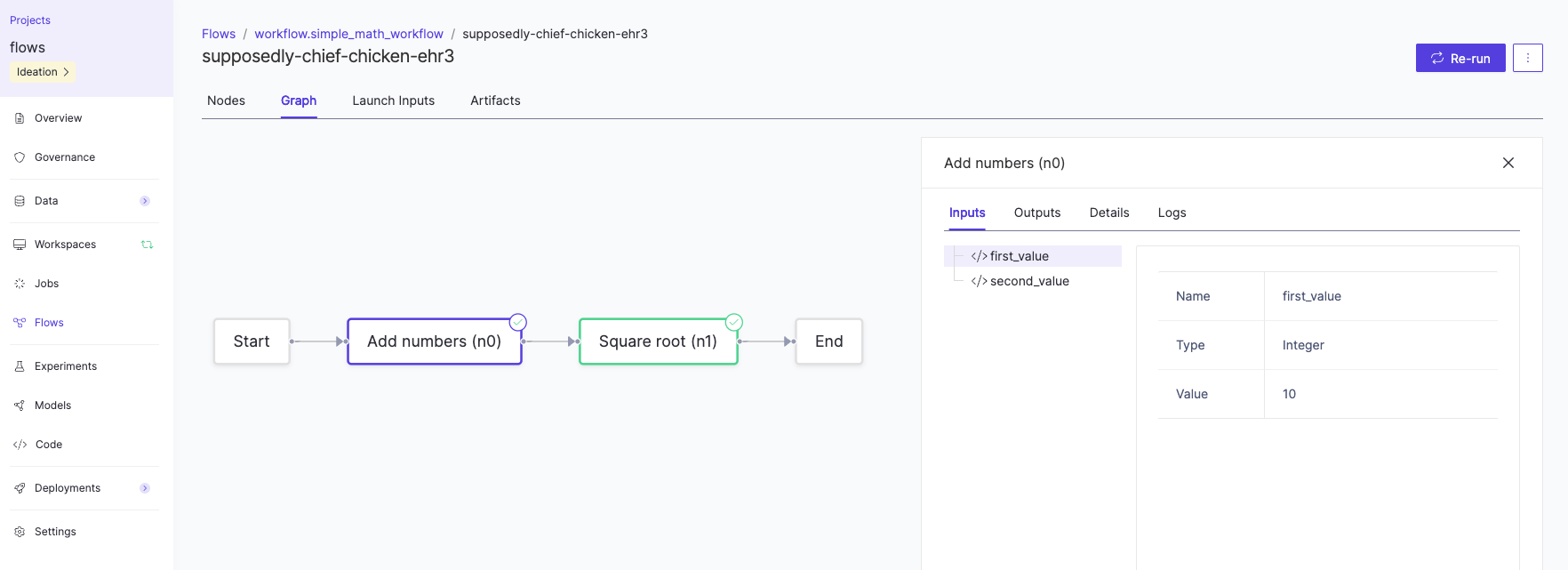
To visualize the full execution flow, click the Graph pivot.
Training flow
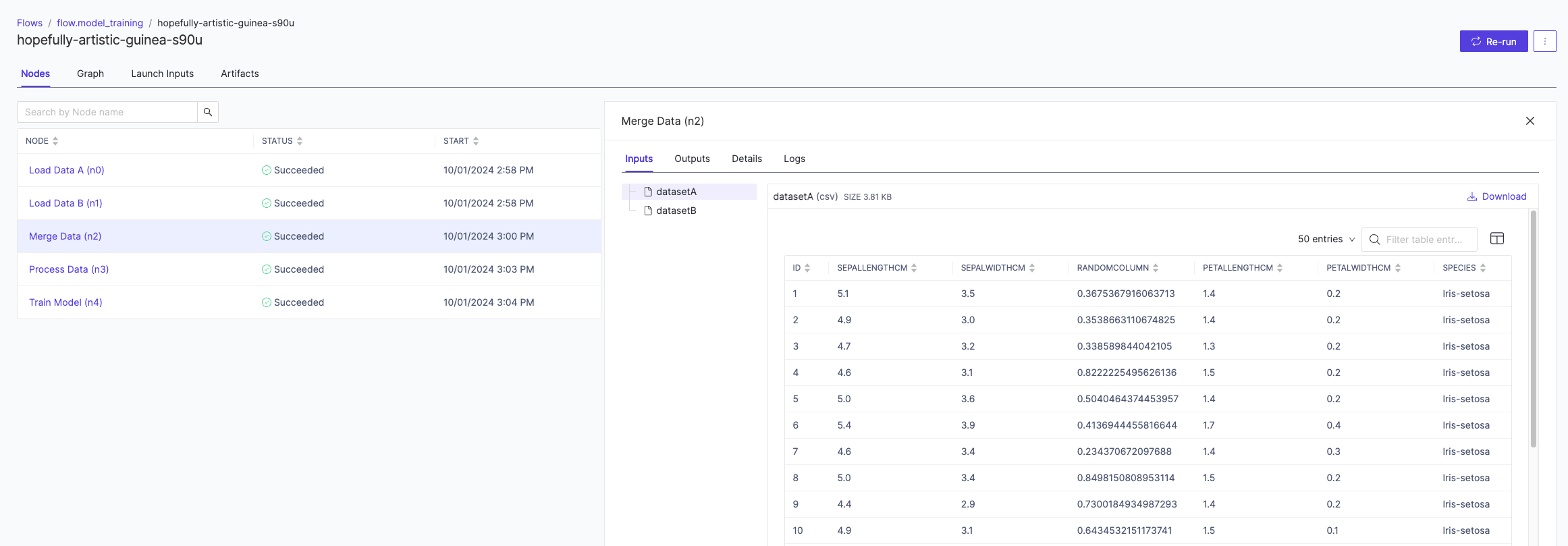
This section demonstrates a basic training flow example with the following steps:- Data is loaded in from two different sources and a snapshot of the data is taken.
- The data is merged together as a single dataset.
- Basic preprocessing is done on the dataset.
- A model is trained using the cleaned dataset.

- Make a fork of the template GitHub repository.
-
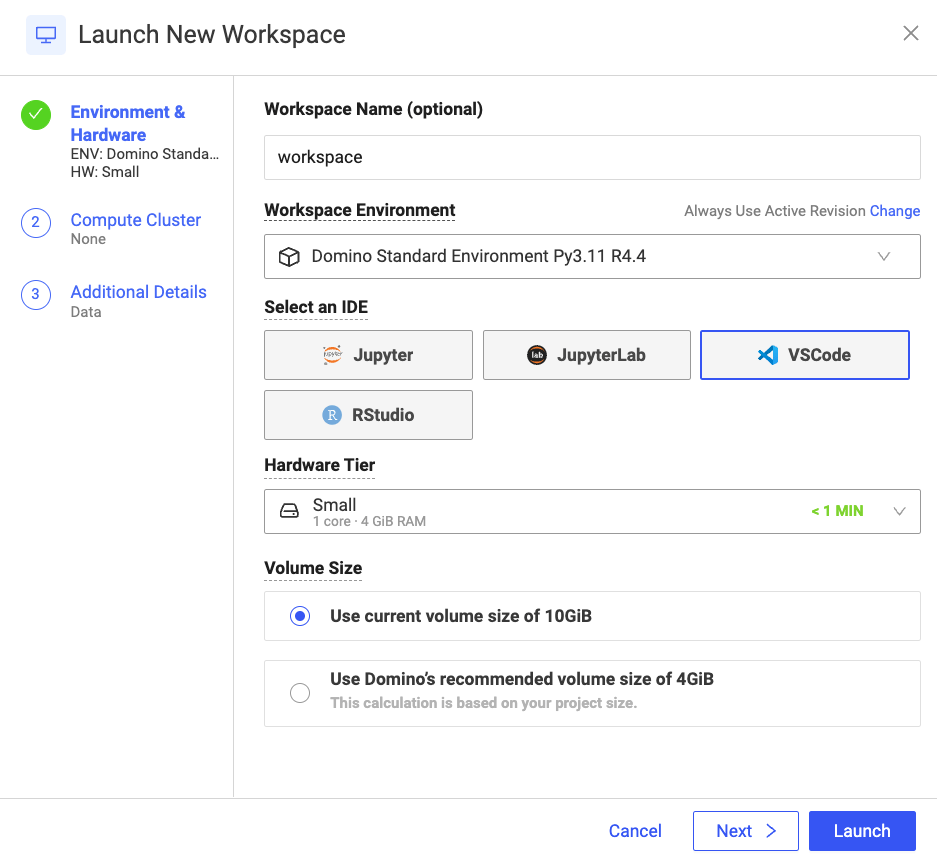
Create a Workspace using the Domino Standard Environment (DSE) from 6.0 onwards, or a custom environment that is built on top of the DSE >= 6.0.
-
Inspect the
mlops_flow.pyfile for the definition of the flow. Note how a helper method, calledrun_domino_job_task, is used here instead of theDominoJobConfigandDominoJobTaskin the basic example above. -
Run the following command in the Workspace terminal to register and run the flow:
-
Navigate to Flows > Flow name > Run name to monitor the results and view the outputs that were produced by the execution.