

Run platform and compute nodes in separate node pools wherever your infrastructure allows it. Domino sets resource limits and requests either way, so no single workload can overwhelm a node.
See Domino architecture for the services that run on each node type.
Kubernetes compatibility
Domino validates its software on Amazon Elastic Kubernetes Service (EKS), Azure Kubernetes Service (AKS), Google Kubernetes Engine (GKE), and Red Hat OpenShift. Domino also validates non-vCluster Nexus data planes on Amazon EKS. For security and stability, keep your Kubernetes infrastructure current and run a version of Domino that Domino has validated against it. Outdated or unvalidated combinations of Domino and Kubernetes can affect the supportability of your deployment.Compatibility matrix
The following matrix shows the supported combinations of Domino and Kubernetes platform versions. To ask about an unlisted Kubernetes distribution, contact your Domino professional services representative. The Kubernetes platform provider dictates end of life (EOL) for Kubernetes versions. For what EOL means on each platform, see the links in the Kubernetes platform column.Upgrade guidance
Kubernetes versions reach EOL every 12 to 14 months, after which the Kubernetes provider may stop supporting them. Align your installation and upgrade planning with the following guidance, and contact Domino customer support with questions about compatibility and upgrade paths.- Domino ships major or minor releases approximately every 3 months. Upgrade every 3 to 6 months to stay current. Skipping multiple versions of Domino produces larger gaps in Kubernetes version compatibility and more complex upgrades.
- Each Kubernetes provider has a different release schedule for specific versions of Kubernetes. Domino aims to support new Kubernetes releases within approximately 3 months of their generally available release date.
- Upgrade Domino onto a supported Kubernetes version. When you upgrade Kubernetes, upgrade to a supported Domino version immediately afterwards.
- Keep the Kubernetes control plane and data plane at the same version to minimize version skew.
Domino Nexus hybrid deployments
Nexus Control Planes have the same Kubernetes cluster requirements as any other Domino deployment. Nexus Data Planes differ in four ways:-
They need no shared storage (no
ReadWriteManystorage class). - They need only one namespace, for compute.
- Their ingress configuration differs. See Enable a Data Plane for Workspaces.
- Their Kubernetes version compatibility can differ from the control plane. See the compatibility matrix.
Docker compatibility
Domino doesn’t publish a validated container runtime compatibility matrix and recommends the default container runtime version your vendor provides. If your Kubernetes nodes use Docker, use 20.10.24 or higher.Cluster requirements
Deploy Domino into a Kubernetes cluster that meets the requirements in this section.Cluster permissions
Domino needs permission to install and configure pods in the cluster through Helm. The Domino installer is a containerized Python utility that operates Helm through akubeconfig that provides service account access to the cluster.
Namespaces
Domino creates one dedicated namespace for platform nodes, one for compute nodes, and one for installer metadata and secrets.Node pool requirements
Domino requires at least two node pools, one for the Domino platform and one for compute workloads. Add optional pools to provide specialized execution hardware for some compute workloads. Domino recommends starting with four platform nodes and two compute nodes. The table below gives each pool’s floor and ceiling rather than that starting size, so the compute pool’s minimum is lower than the two nodes Domino recommends you begin with.
Enable autoscaling on the compute pool. Node requirements increased in Domino 5.0, so if you upgrade to 5.0 or higher and the platform cluster does not support autoscaling, raise the node count to cover the requirements above.
Tag every pool with
kubernetes.io/cluster/{{ cluster_name }}: owned. For autoscaler autodiscovery, also tag every pool with k8s.io/cluster-autoscaler/enabled: true and k8s.io/cluster-autoscaler/{{ cluster_name }}: owned. The compute and GPU pools carry these additional tags:
Configure GPU nodes with the appropriate NVIDIA driver and
nvidia-docker2, and set the default Docker runtime to nvidia. The EKS GPU-optimized Amazon Machine Image (AMI) is one example.
Storage requirements
Storage classes
Domino requires at least two storage classes.
Dynamic block storage must be backed by a storage class that:
- Supports dynamic provisioning
- Can be mounted on any node in the cluster
- Can provision volumes of at least 100 GB
-
Supports
ReadWriteOncesemantics - Is backed by true, fully POSIX-compliant block storage, not Network File System (NFS)
If this storage does not meet these requirements, or if you override critical services that rely on block storage (MongoDB, Postgres, Git) to use a different storage class, you may see performance degradations, catastrophic failures, and unexpected data loss.
- Dynamically provisions Kubernetes PersistentVolumes
-
Can be accessed in
ReadWriteManymode from all nodes in the cluster -
Uses a
volumeBindingModeofImmediate
Storage by resource
Domino uses cloud-provider native object storage where it is available, and thedominoshared storage class everywhere else.
On-premises storage
On-premises deployments use a wide variety of block and file-based storage. Backdominodisk with block storage rather than NFS, ideally meeting the dynamic block storage requirements above.
In some cases host volumes can back services such as Git, Postgres, and MongoDB, and Postgres and MongoDB replicate their own state. Host volumes can also back Runs, though network-attached block storage is preferred because it keeps cached files portable between nodes. If you use host volumes for Runs, disable file caching and expect slow start-up executions for large projects.
Cluster networking
Domino relies on Kubernetes network policies to manage secure communication between pods, so your networking solution must support the KubernetesNetworkPolicy resource. Calico is one such solution.
Ingress and SSL
Configure Domino to serve from a specific fully qualified domain name (FQDN), and resolve DNS for that name to the address of an SSL-terminating load balancer with a valid certificate. The load balancer must target incoming connections on ports 80 and 443 to port 80 on all nodes in the platform pool, and it must support WebSocket connections. Health checks must use HTTP on port 80 and check for 200 responses from a path of/healthz.
So that Domino detects the protocol of incoming requests correctly, the SSL-terminating load balancer must set the X-Forwarded-Proto header. Domino does not support the alternative Forwarded header.
Domino continues to support Environments with subdomains, but recommends against them for improved security. If you use subdomains for your Domino deployment and need best-practice information, contact your account manager.
NTP
The nodes in your Kubernetes cluster must have a valid Network Time Protocol (NTP) configuration. Accurate clocks are a prerequisite for single sign-on (SSO) protocols, Transport Layer Security (TLS) connections to external services, intra-cluster TLS when you use Istio, and other time-sensitive protocols. They also prevent TLS validation failures and general interoperability issues.NVIDIA DGX systems
NVIDIA DGX systems run Domino workloads once you add them to your Kubernetes cluster as compute (worker) nodes.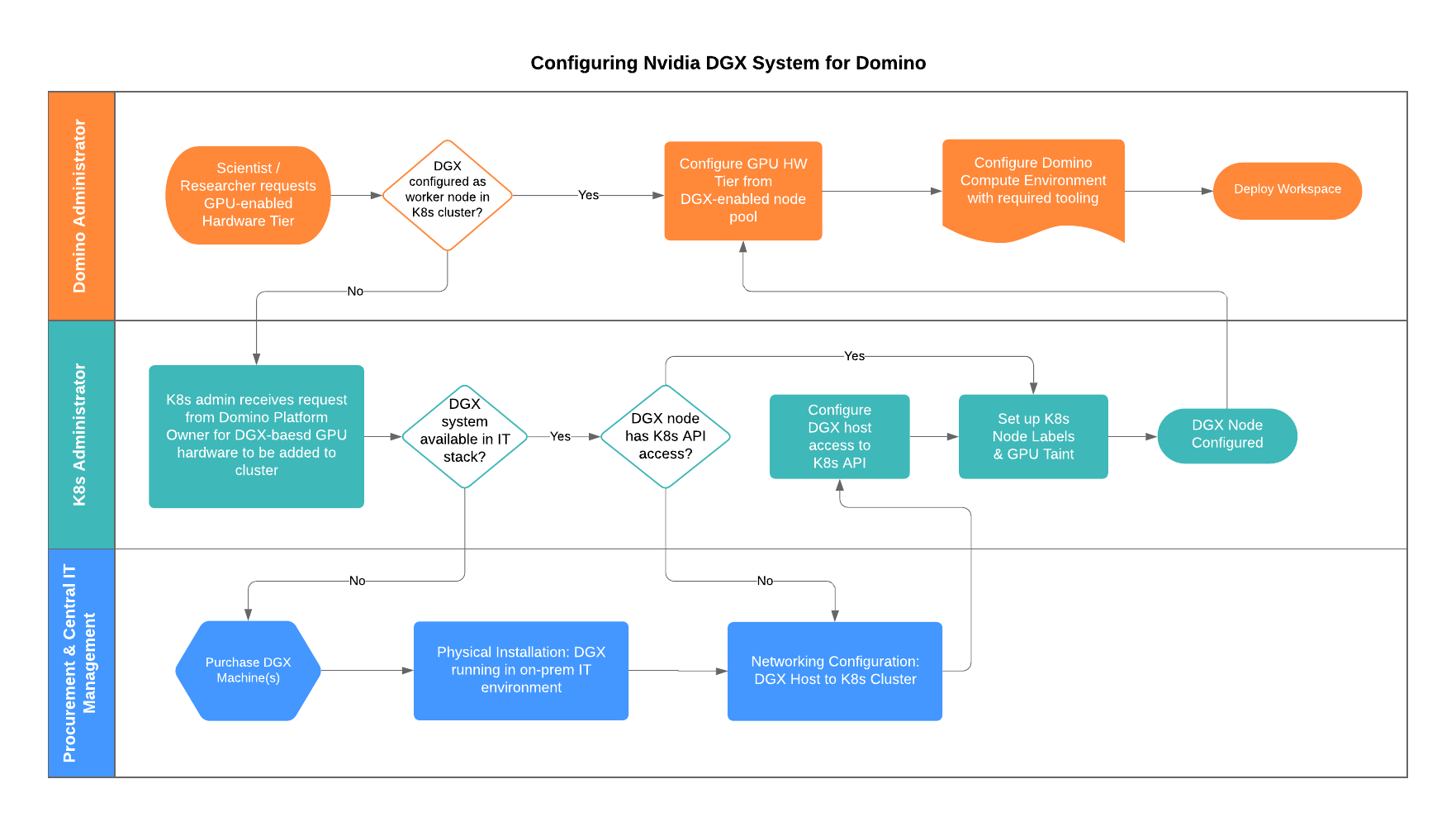
Install a DGX system
1
Purchase and provision the DGX system
Purchase NVIDIA DGX systems through NVIDIA’s Partner Network. Install the system in a hosting environment with network access to the node and storage infrastructure that Domino requires.
2
Add the DGX system to a Kubernetes cluster
- Existing cluster
- New cluster
-
Add the DGX to your Kubernetes API server as a worker node, with a node label that matches your naming conventions. The default node label for GPU-based worker nodes is
default-gpu. - Add taints to the DGX node so that Domino selects it for GPU-based workloads.
3
Configure a GPU-enabled Hardware Tier
Once the DGX is added to your API server and labeled, configure Hardware Tiers in the Domino admin application, and set user execution quotas to control who consumes the hardware.
Configure CUDA and NVIDIA drivers
1
Install the NVIDIA driver on the host
Your server administrator configures the NVIDIA driver at the host level. Use NVIDIA’s driver downloads to identify the correct driver for your host, and see the DGX systems documentation for more detail.
2
Identify the CUDA version your framework requires
Each development framework documents the CUDA software version it needs. For example, TensorFlow 2.1 and later requires CUDA 10.1 plus additional packages such as cuDNN.
3
Match the CUDA and driver versions
Consult the CUDA and NVIDIA driver compatibility table. In the TensorFlow 2.1 example, CUDA 10.1 means the host must run CUDA 10.1 or later and NVIDIA driver 410.48 or later.
4
Set the CUDA version in the Compute Environment
Configure the Compute Environment to use the exact CUDA version the application needs. CUDA drivers are backwards compatible, so the host’s CUDA version can be greater than or equal to the version the Compute Environment specifies.Installing an exact CUDA version, patch version included, often returns unexpected results. The fastest route to a working configuration is usually to install the latest minor release of the major CUDA version you need, then set a Docker environment variable in your Compute Environment that constrains the compatible set of CUDA versions, GPU generations, and NVIDIA drivers.
DGX best practices
- Keep DGX GPUs off build nodes. Use a CPU resource as the build node for Compute Environments instead.
- Split GPUs across several Hardware Tiers. Offer tiers of 1, 2, 4, and 8 GPUs, for example. Training Jobs use single or parallel GPUs, and consuming a whole DGX for one workload is often not feasible.
- Restrict access per organization. After splitting the tiers, grant access globally or limit it to specific organizations. Give the organizations that need GPUs access and restrict the rest, so critical work keeps its capacity and no one consumes a GPU tier without authorization.
Next steps
- Set up Domino on EKS, AKS, GKE, or an on-premises cluster.
- Deploy workloads across multiple Kubernetes clusters with Nexus hybrid architecture.
- Work through the Domino installation process.