

Orchestrate the installation
-
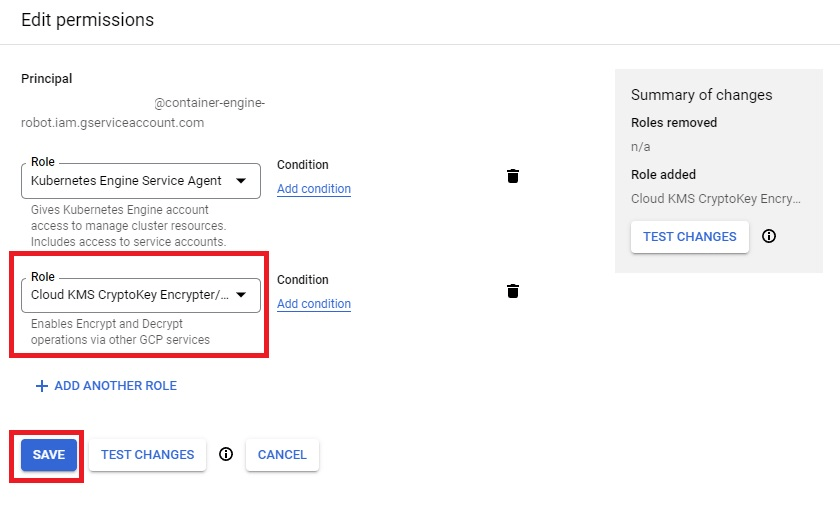
In the GCP console, go to Identity and Access Management services (IAM) and select Include Google-provided role grants. Filter by Kubernetes Engine Service Agent and click the pencil icon.

-
Add the Cloud KMS CryptoKey Encrypter/Decrypter role to the service principal.
Provision your infrastructure with Domino’s Terraform module
Domino recommends that you use our public-facing GCP-specific Reference Terraform module. You can also reference this module to manually provision the environment and infrastructure.-
Open the
main.tffile then go to thegke_clustermodule, and edit the attributes as follow:-
gke_cluster.project: Name of the project where the cluster is deployed. -
gke_cluster.deploy_id: Name of the cluster to create. -
gke_cluster.location: Location of the cluster. -
gke_cluster.master_authorized_networks_config.cidr_block: External network that can access Kubernetes master through HTTPS. Must be specified in Classless Inter-Domain Routing (CIDR) notation. -
gke_cluster.node_pool_overrides.gpu.node_locations: Location of the GPU nodes.
-
-
To initialize the modules, run the following command in the same folder as
main.tf: -
To start the infrastructure deployment, run the following commands (you can ignore deprecation warnings):