- Federated authentication through an LDAP Active Directory Provider
- Brokered authentication through single sign-on (SSO)
Access Keycloak
To access your Keycloak instance, visithttps://<your-domino-domain>/auth/.
You must sign in to the Keycloak admin console at least once to initialize the authentication service.
Retrieve the administrator password
Before your first sign-in, you must retrieve the administrator password. If you haven’t already, install kubectl and sign in to Kubernetes.-
Retrieve the administrator password from the
keycloak-httpKubernetes secret:The following is a sample response: -
Decrypt the password from the response:
-
Use this password to sign in to
https://<your-domino-domain>/auth/with the usernamekeycloak.
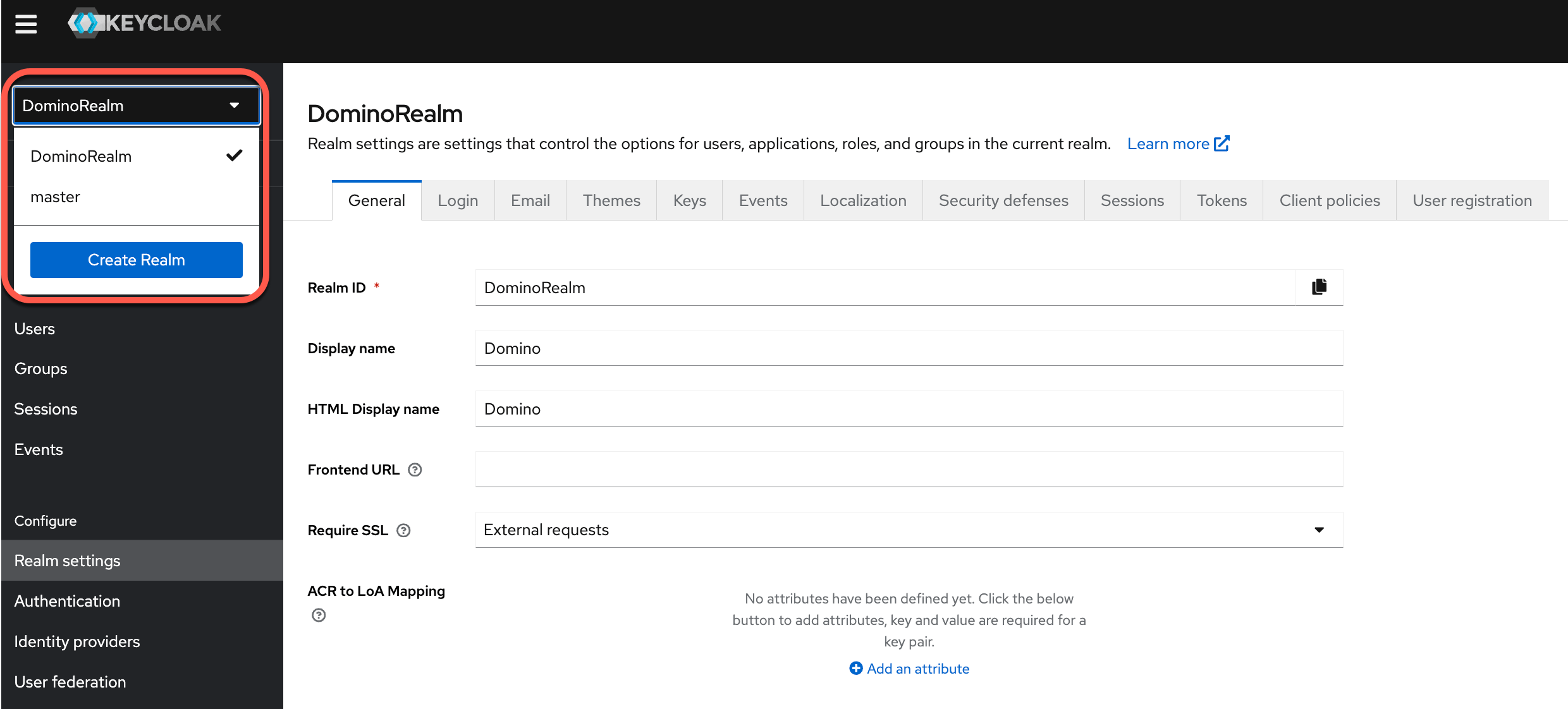
DominoRealm, to create and manage new users. When you review or change settings for Domino authentication, ensure that you have DominoRealm selected.
Enable or disable user registration
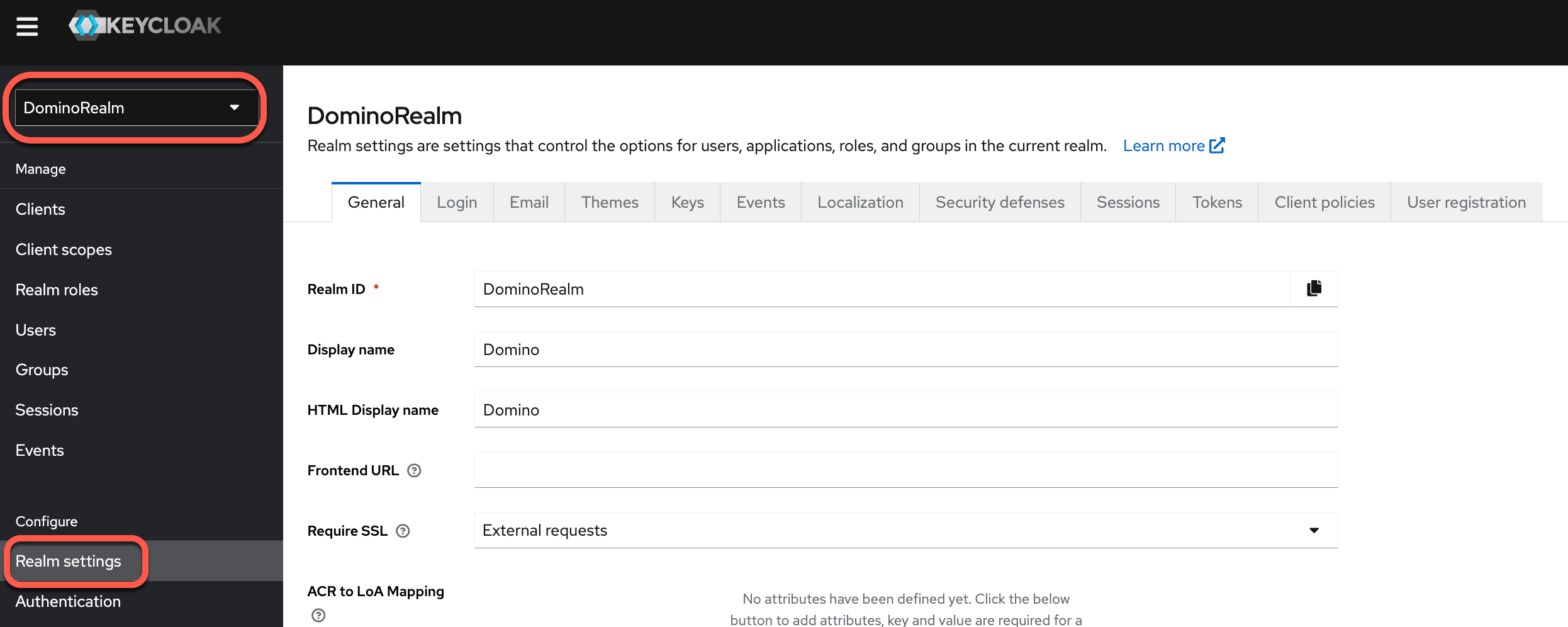
You can enable or disable Domino user registration from the Keycloak admin console. Make sure to enable user registration, so users can join your fresh Domino install.- In the Keycloak sidebar menu, click Realm Settings.
- Click the Login tab, and toggle User registration to On or Off.
Local username and password configuration
The simplest option for authentication to Domino is to use local usernames and passwords. When you choose local authentication, Keycloak stores all user data in Postgres. Set login and email configurations in Keycloak for easy authentication to Domino.Login configuration
When using local usernames and passwords, you find important login settings in the Login tab of theDominoRealm settings page.
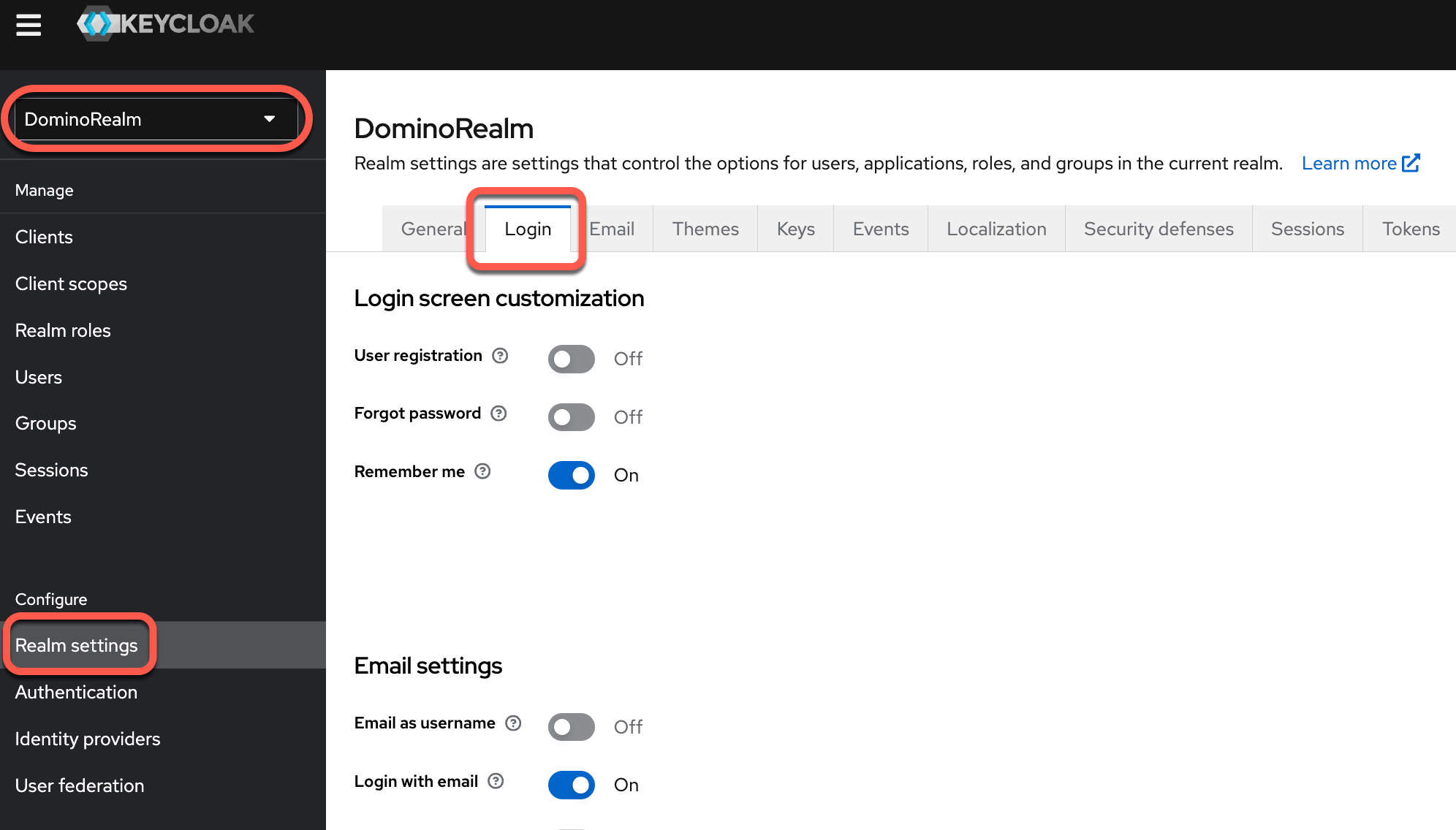
Email as username is not supported. If you want to use the
Verify Email option, an SMTP connection must be configured in the Email tab.Email configuration
You can configure Keycloak to be able to send emails, such as for password resets. In the DominoRealm, navigate to Realm Settings > Email. The form contains fields that map to values provided by an SMTP email service provider or SMTP server.You can use the email configuration admin page to set SMTP settings for the deployment and Keycloak simultaneously instead of using the Keycloak panel. See Email configuration for more info.
User management
Your first sign-in as administrator automatically configures Keycloak with realms. A realm is the Keycloak equivalent of a tenant. It’s used to manage groups of users. The default Keycloak admin account is in the Master realm. Master realm accounts can view, create, or update accounts in other realms. Domino also automatically configures a realm called DominoRealm. DominoRealm accounts are non-admins and have ordinary user privileges. In the Keycloak sidebar, from the menu, click DominoRealm.