

Create a Domino SAML service provider (SP)
From the Keycloak sidebar menu, click Identity providers > Add provider > SAML v2.0.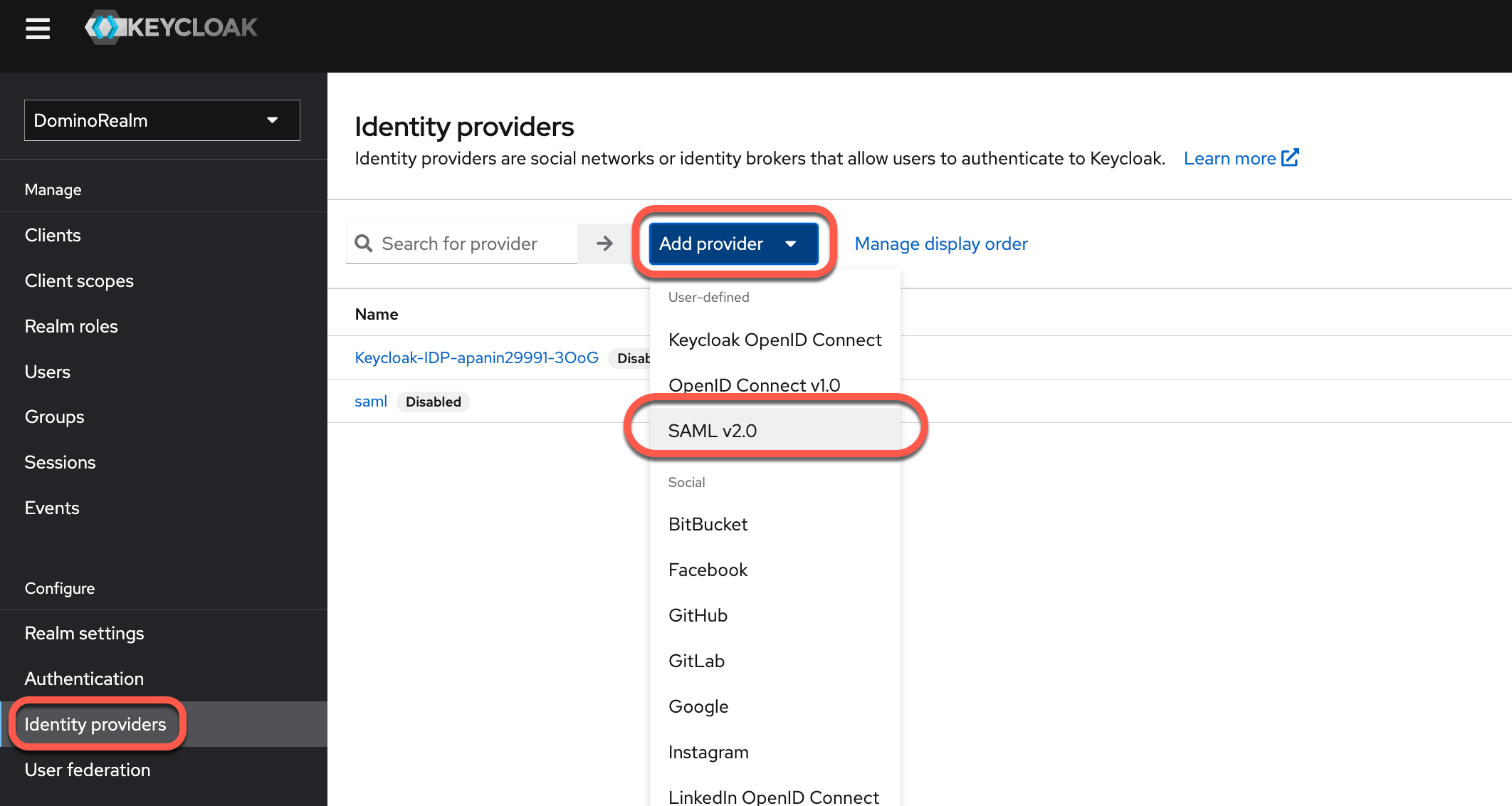
Configure alias and redirect URI
Provide an Alias for the newly created provider. The alias field is a unique name for the provider in Keycloak. It’s part of the Redirect URI used by the provider service to route SAML responses and redirect users after their account is authenticated. The redirect URI is case-sensitive. It takes the following form: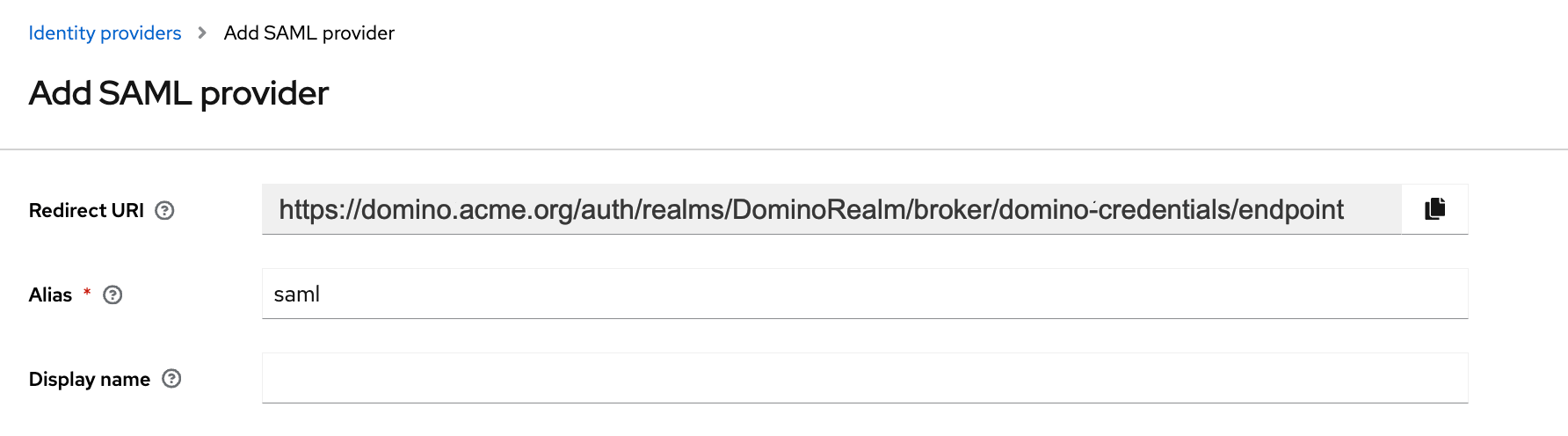
Create a SAML endpoint in your upstream identity provider
- Create a SAML application in the identity provider that is integrated with Domino. To create the application you need the Redirect URI from the previous step. The specific procedure to create the SAML endpoint depends on your identity provider. Domino can integrate through SAML with Okta, Azure AD, Ping, and any other provider that implements SAML 2.0.
- After you create and configure the SAML endpoint, you must export an XML metadata file to complete the configuration of the provider in Keycloak. The following are important properties of the SAML endpoint you create in the provider.
NameID policy format
NameID controls the format of the <saml2:NameID> element in the SAML response. This is used to derive the SSO username in Domino.
Option 1urn:oasis:names:tc:SAML:1.1:nameid-format:emailAddress
Users are uniquely identified by their email, and their username is automatically derived from it.
Example:
urn:oasis:names:tc:SAML:1.1:nameid-format:unspecified
The SAML endpoint must respond with a string that can be used as a username without any modification.
Example:
urn:oasis:names:tc:SAML:1.1:nameid-format:persistent
Typically, the SAML endpoint returns a NameID which is a GUID that is not suitable for a username. If the endpoint must use this format, then an additional attribute that contains the username must be returned.
Assertion attributes
To automatically populate the user’s Domino profile, the SAML response must contain the following attributes. Without these attributes, the user is prompted to complete the required elements of their user profile. The required attributes are:-
firstName -
lastName -
email -
username(ifnameIdis not an email or does not represent the username). -
destination
Import metadata
Use the metadata file from the previous step to complete the provider configuration in Keycloak.Import IdP metadata
- While creating the SAML provider, turn off Use entity descriptor to reveal the options to import config files.
- Choose the file to import. Most of the provider settings are configured automatically.
- Save the configuration.
Additional settings
After you’ve completed the initial configuration, confirm the following settings are configured correctly.Email settings
Trust Email -Yes
Ensures that emails supplied by IdP are trusted even if Email Verification is enabled for DominoRealm.
Sync mode settings
Sync Mode -force
Ensures that user data is updated during every login with the identity provider, allowing Keycloak to pick up changes from the upstream identity provider.
Username settings
NameID Policy Format This was configured on import, but verify that it matches the option configured on the external endpoint.Authentication settings
-
Want Assertions Signed -
Yes -
Validate Signature -
Yes -
Want AuthnRequests signed -
Yes -
Want Assertions signed -
Yes -
Want Assertions encrypted -
Yes
See Keycloak SAML v2 Identity Providers for more documentation about all supported SAML settings.
Export metadata from Keycloak
After you save the provider in Keycloak, you get the XML metadata for the provider to automatically configure an external endpoint:- In Keycloak go to Identify providers > select your provider > Settings.
- Click SAML 2.0 Service Provider Metadata.
Configure attribute mappers
So that new users signing in for the first time don’t need to complete their profile on initial login, you must pass several SAML attributes in the SAML response, and ensure these are correctly mapped to Domino user attributes. If the attributes are not properly mapped, upon first login users are prompted to complete the empty fields in their profile.Map first name, last name, and email
To map these values from the SAML assertion attributes to the user profile model, you must configure an Attribute Importer mapper from the Mappers tab.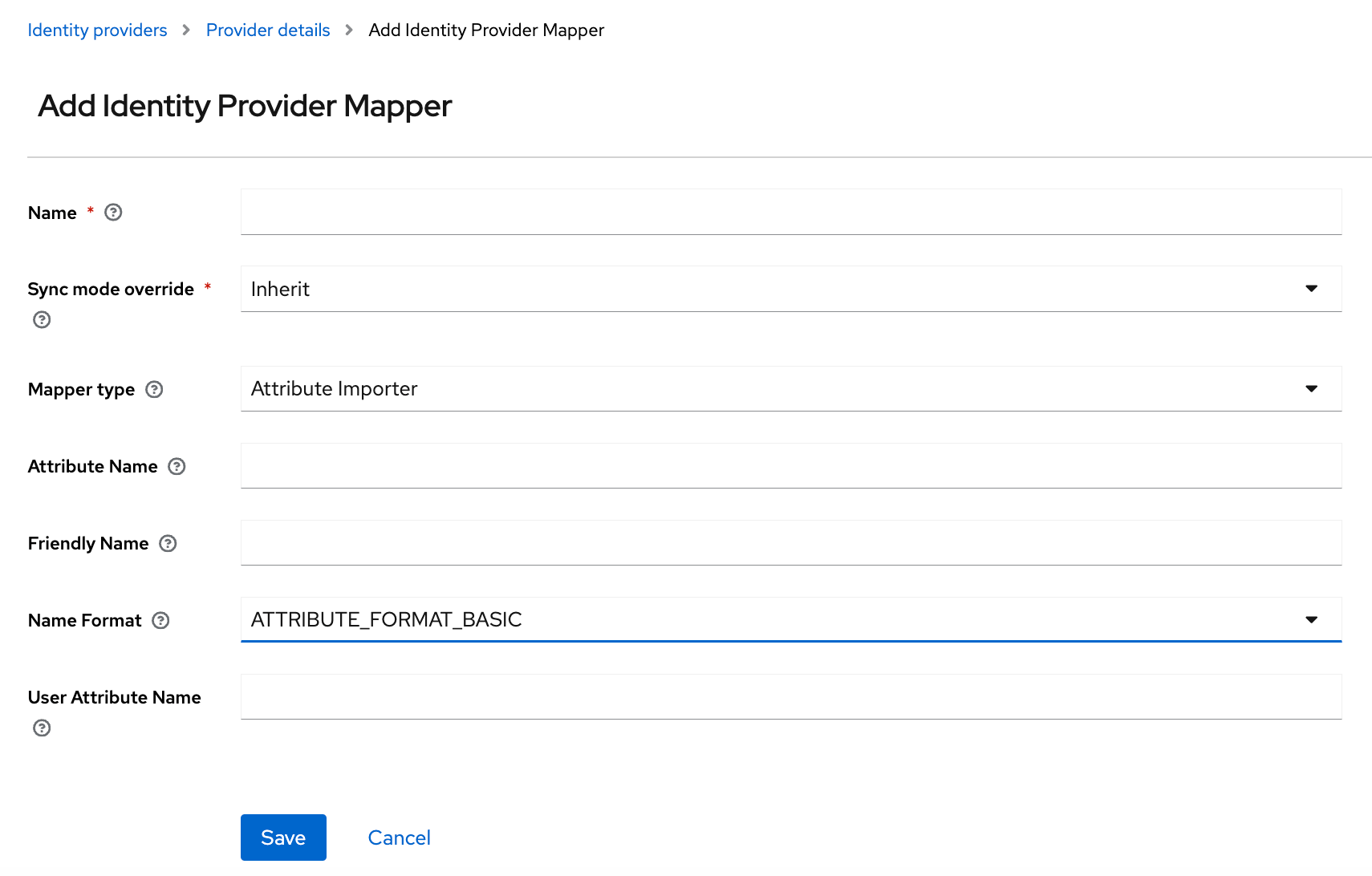
First name mapper
-
Name:
First Name -
Sync Mode Override:
inherit -
Mapper Type:
Attribute Importer -
Attribute Name: Name attribute for the
<saml2:Attribute>element that contains the value to be mapped toFirst Name. -
Friendly Name:
FriendlyNameattribute (optionally available) for the<saml2:Attribute>element that contains the value to be mapped toFirst Name. -
User Attribute Name:
firstName
Last name mapper
-
Name:
Last Name -
Sync Mode Override:
inherit -
Mapper Type:
Attribute Importer -
Attribute Name: Name attribute for the element that contains the value for
Last Name. -
Friendly Name:
FriendlyNameattribute for the<saml2:Attribute>element that contains the value forLast Name. -
User Attribute Name:
lastName
Email mapper
-
Name:
Email -
Sync Mode Override:
inherit -
Mapper Type:
Attribute Importer -
Attribute Name: Name attribute for the element that contains the value for
Email -
Friendly Name:
FriendlyNameattribute for the<saml2:Attribute>element that contains the value forEmail. -
User Attribute Name:
email
Setting the Sync Mode Override property to
inherit has the same effect as setting it to force if the identity provider is configured as recommended above.First Name from an assertion with the following payload:
-
Name:
First name -
Sync mode override:
inherit -
Mapper type:
Attribute importer -
Attribute Name:
CustomSAMLFirstName - Friendly Name:
-
User Attribute Name:
firstName
-
Name:
First name -
Sync mode override:
inherit -
Mapper type:
Attribute importer - Attribute Name:
-
Friendly Name:
friendlyFirstName -
User Attribute Name:
firstName
Map username
The mapper configuration for the username depends on how the external endpoint is configured with respect to NameID Policy options.- Option 1:
urn:oasis:names:tc:SAML:1.1:nameid-format:emailAddress
-
Use
Email Prefix as UserName Importer -
Example:
Map as shown:\
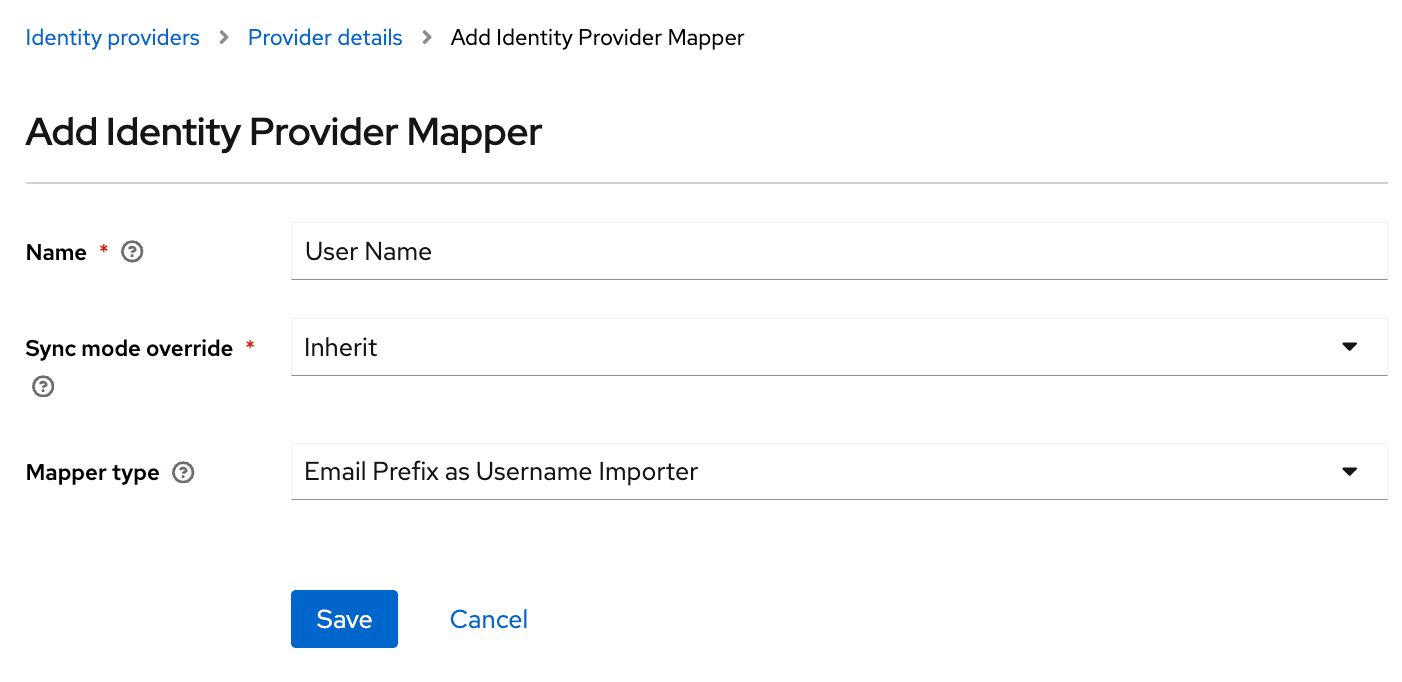
-
Name:
User Name -
Sync mode override:
Inherit -
Mapper type
Email Prefix as Username Importer -
Option 2:
urn:oasis:names:tc:SAML:1.1:nameid-format:unspecified-
No need to do an importer. The username is mapped automatically to the
NameIDvalue -
Example:
-
No need to do an importer. The username is mapped automatically to the
-
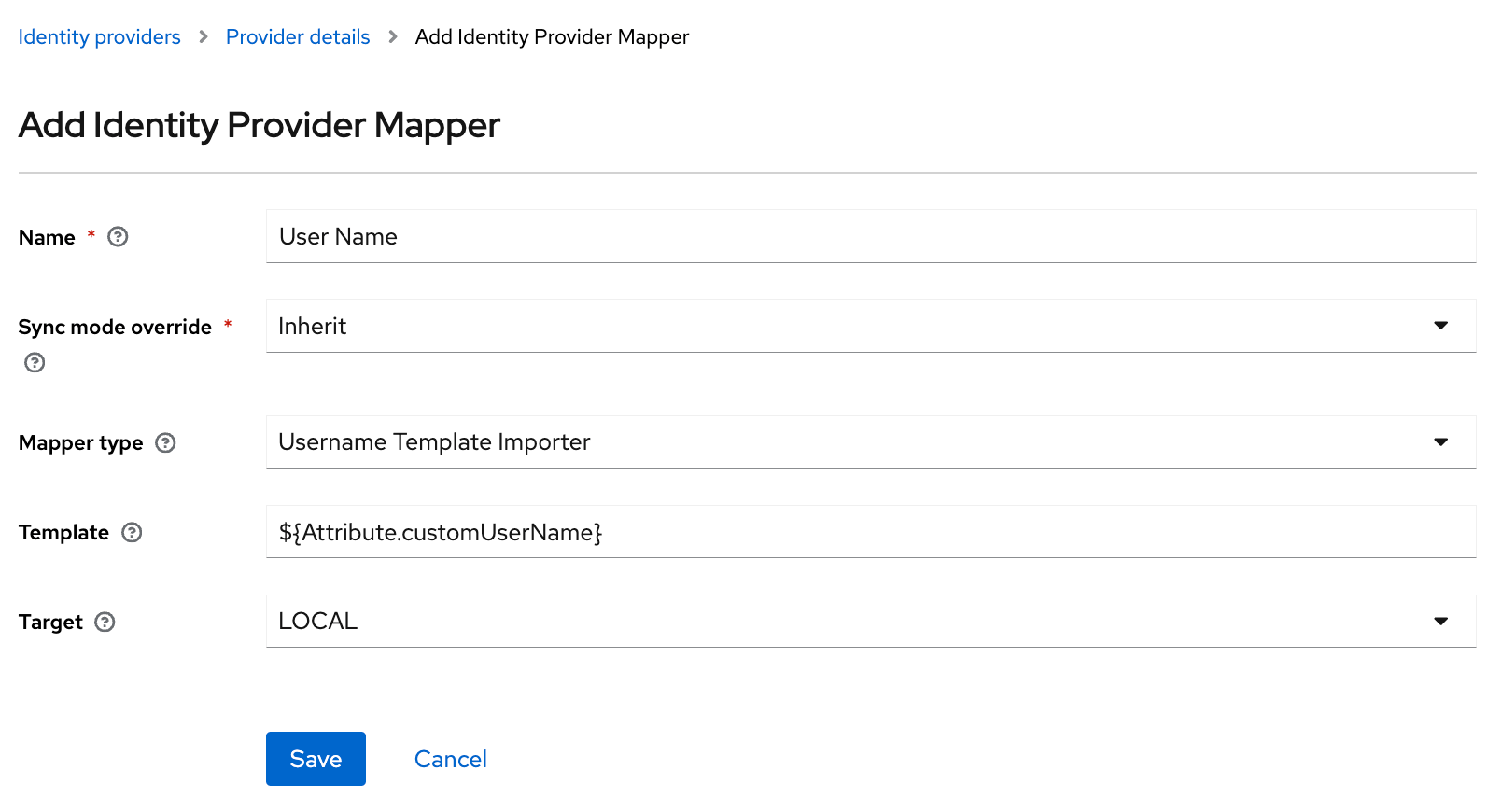
Option 3:
urn:oasis:names:tc:SAML:1.1:nameid-format:persistent-
Use
Username Template Importerwith Template of${ATTRIBUTE.<attribute Name>}or${ATTRIBUTE.<attribute FriendlyName>} -
Example:
Map as follows:\
-
Name:
User Name -
Sync mode override:
Inherit -
Mapper type:
Username Template Importer -
Template:
${Attribute.customUserName} -
Target:
LOCAL
-
Use
Attribute mapping documentation
See Mapping claims and assertions for additional information on attribute mapping.Email Prefix as Username Importer
When you use the Email Prefix as Username Importer mapper as illustrated previously (Option 1), the generated username is the email prefix, stripped of all characters except alphanumeric and underscores. Special characters are converted to underscores. Characters with diacritics are converted to their ascii base. If a username from an external system is already present, the same transformation rules are applied to it. For example, a username$jöhn.smîth#home$ or an email address $jöhn.smîth#home$@somehost.com would both be mapped to the username john_smith_home.
Troubleshoot attribute mapping
When you troubleshoot SAML attribute mapping, refer to a specification for the SAML response that your identity provider endpoint sends back to Keycloak after authentication. A thorough specification details theNameID policy format and attributes sent in the response.
If such a specification is not available, or the attribute mapping does not function as expected, you might have to examine a SAML response that is returned from a login attempt. One way to do this is to use the SAML-tracer extension available for Chrome and Firefox. This allows you to examine decoded SAML requests and responses to:
- See the returned attributes (and whether any are missing).
- Verify that the names or formats are as expected.
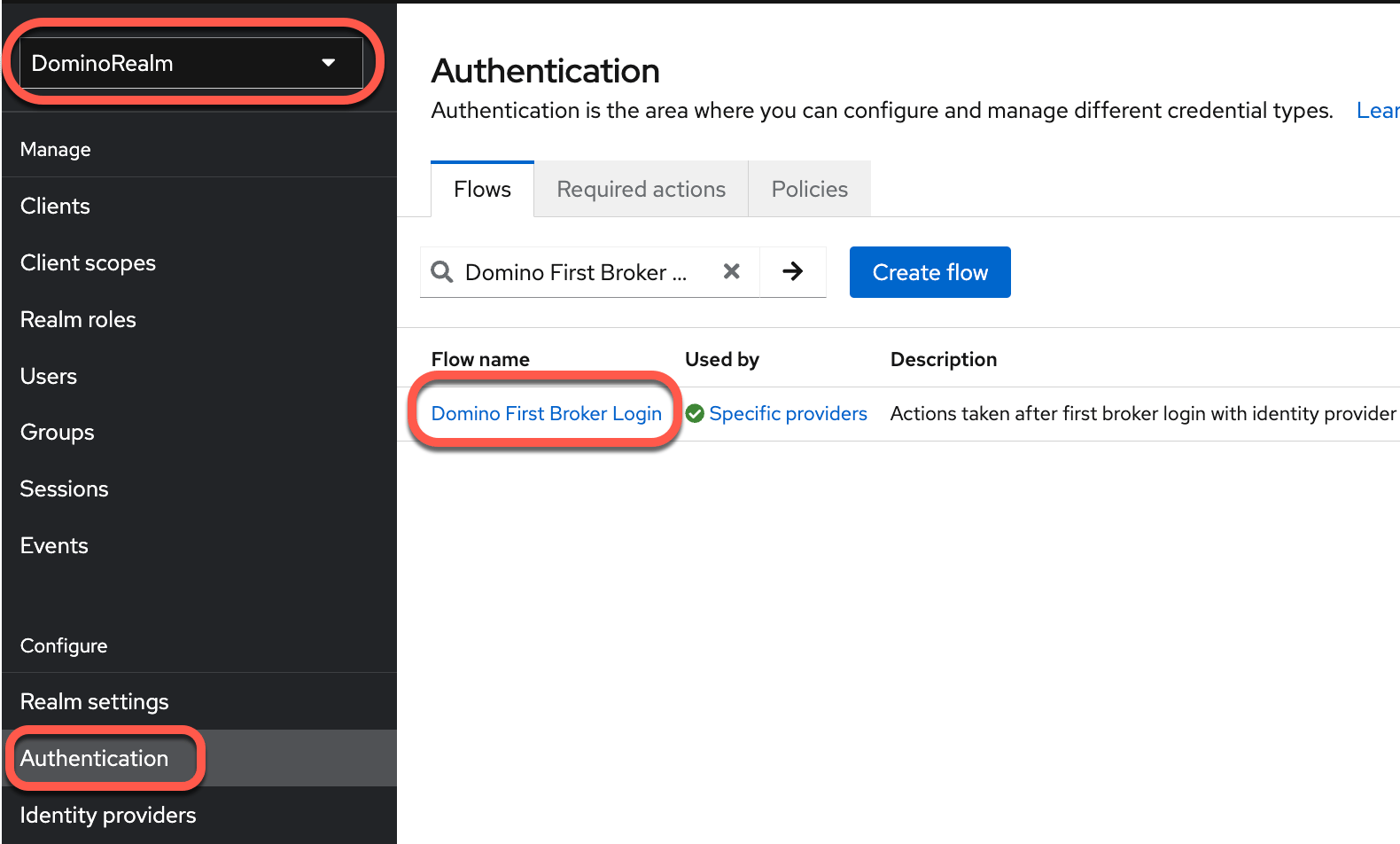
Domino First Broker Login authentication flow
To configure the recommended login authentication flow, click theDomino First Broker Login flow:
Restrict access for SSO users to Domino
Typically, when you configure the SAML endpoint that provides SSO authentication for Domino, the provider administrator restricts the endpoint to a subset of users who are allowed to authenticate through it.This is the preferred method to restrict access to a subset of users with valid enterprise credentials.
Prerequisites
The Domino Keycloak instance must havekeycloak.profile.feature.scripts enabled.
Expected SAML attributes
An attribute must indicate whether a properly authenticated user can log in to Domino. AttributeName- Suggested: rolesForDomino
- Can be anything as this is mapped.
Yes; Value
- Contains one or more values that can be used to gate access. Typically, these values are roles or groups.
Attribute mapper
You must add an additional mapper to your provider configuration in Keycloak. Use an Attribute Importer mapper type.-
Sync mode override
inherit -
Name:
Allow in Domino -
Mapper Type:
Attribute Importer -
Attribute Name:
Nameattribute for the element that contains the flag. -
Friendly Name:
FriendlyNameattribute for the element that contains the groups for the user. -
User Attribute Name:
accessforDomino
Create the post-login authentication flow
By default, Domino doesn’t provide a post login flow so you must add one.Add a post-login flow
-
Create a JavaScript file (such as
authenticator.js) using the following script as an example. -
Create a JAR file with the following structure:
The
META-INF/keycloak-scripts.jsonis a file descriptor that provides metadata information about the scripts you want to deploy. It is a JSON file with the following structure: -
Deploy the JAR file to the Keycloak server. Make sure to not accidentally overwrite existing files. Assuming the JAR file is called
script.jar, run the following command:After running this command, restart each Keycloak replica pod. - Go to Authentication > Flows > Create Flow.
-
Create a new flow with the following information:
-
Name:
Post Login Flow -
Flow type:
Basic flow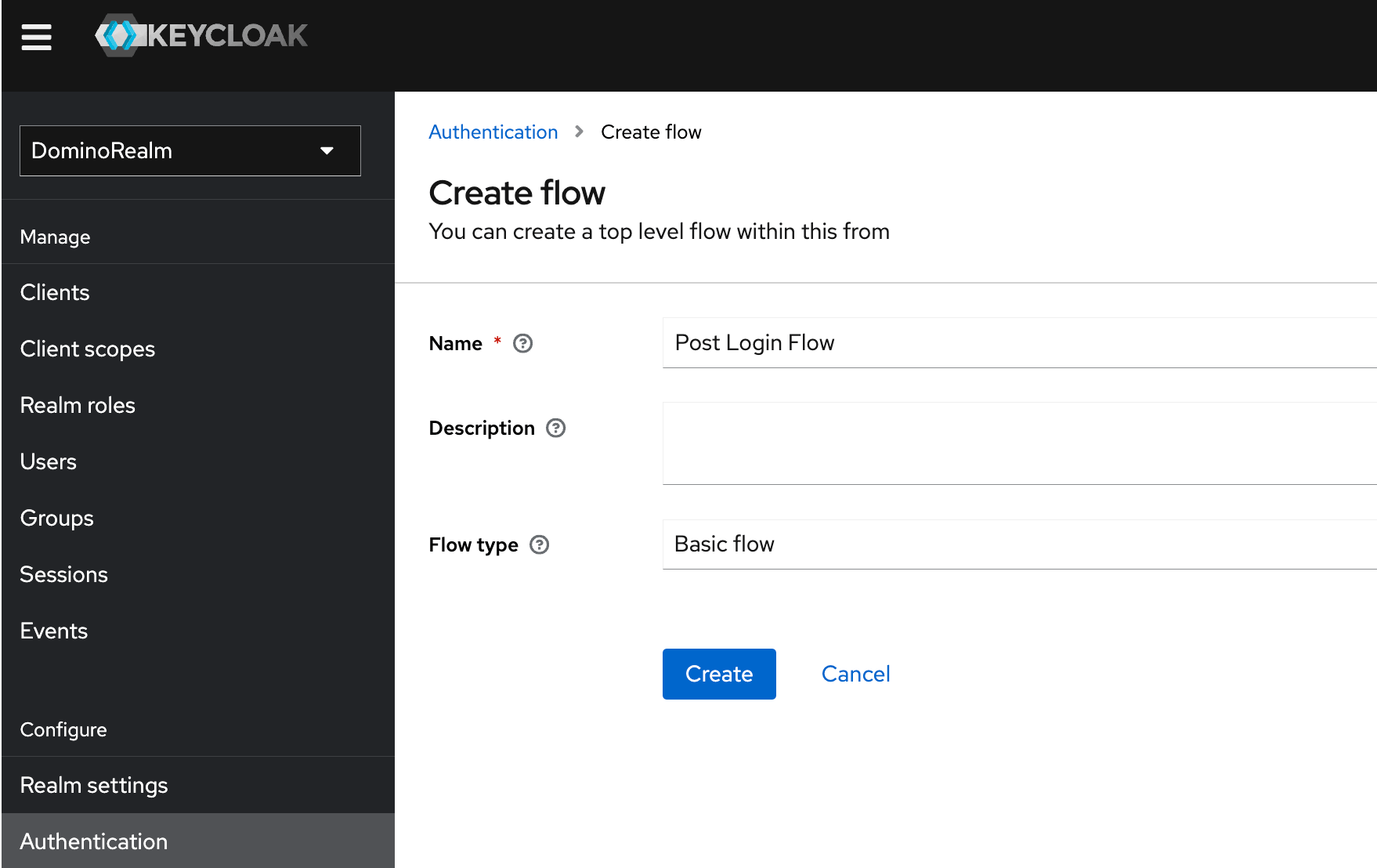
-
Name:
- Click Add execution > Select your Authenticator, in this example, My Custom Authenticator.
Customize the SSO button
-
In Keycloak, go to the default
domino-theme. - Update the Display text. If Display text is blank or corresponds to the identity provider’s Alias, the button shows the default text, Continue with Single Sign On. If any text other than the value of the Alias field is used, that value is used as the text on the button.
Test and troubleshoot
If you encounter errors from the Keycloak service when you attempt an SSO login, you can view the Keycloak request logs throughkubectl. Run the following:
Session and token timeouts
Domino interacts with Keycloak through the OpenID Connect protocol, which uses two JWT tokens:- Access token gives its bearer access to the secured resource (can be used to authenticate requests).
- Refresh token is not recognized by the secured resources, but it is used to request a fresh valid access token from the identity provider (Keycloak).
This defines how long an access token is valid. Domino does not re-check the validity of the user’s authentication with Keycloak until this token expires. The default value is 5 minutes. SSO Session Max
This setting has no effect on the lifespan of any tokens, but it limits the maximum length of the user’s session with Keycloak. Even if the user refreshes their tokens and actively uses Domino, they are logged out at the end of this period. The default value is 60 days. SSO Session Idle
This defines the maximum period of time in which the user’s session on Keycloak must be refreshed, otherwise it is terminated. It defines the lifespan of the refresh token. This period must be longer than Access Token Lifespan, and not longer than SSO Session Max. See the Keycloak documentation for more information about timeouts.
SSO attributes
You must have the following attributes to establish single sign-on between Domino and your identity provider:-
Username
-
NameID(In Subject element) -
Preferred format:
urn:oasis:names:tc:SAML:1.1:nameid-format:email
-
-
First Name
- Attribute name: Can be any name since Domino allows attribute mapping.
-
Last Name
- Attribute name: Can be any name since Domino allows attribute mapping.
-
Email
- Attribute name: Can be any name since Domino allows attribute mapping.
- Destination
Administrative role synchronization attributes
You must include the following attributes if you sync administrative roles in Domino:-
Domino System Roles
- Name: Can be any name since Domino can map attributes.
- Multi-valued: Yes
-
Values:
-
One or more values that are an exact, case-sensitive match to one of the Domino administrative roles.
- Practitioner
- SysAdmin
- Librarian
- ReadOnlySupportStaff
- SupportStaff
- ProjectManager
-
One or more values that are an exact, case-sensitive match to one of the Domino administrative roles.